Learn how to upload, enable, and delete scenes in your dashboard.
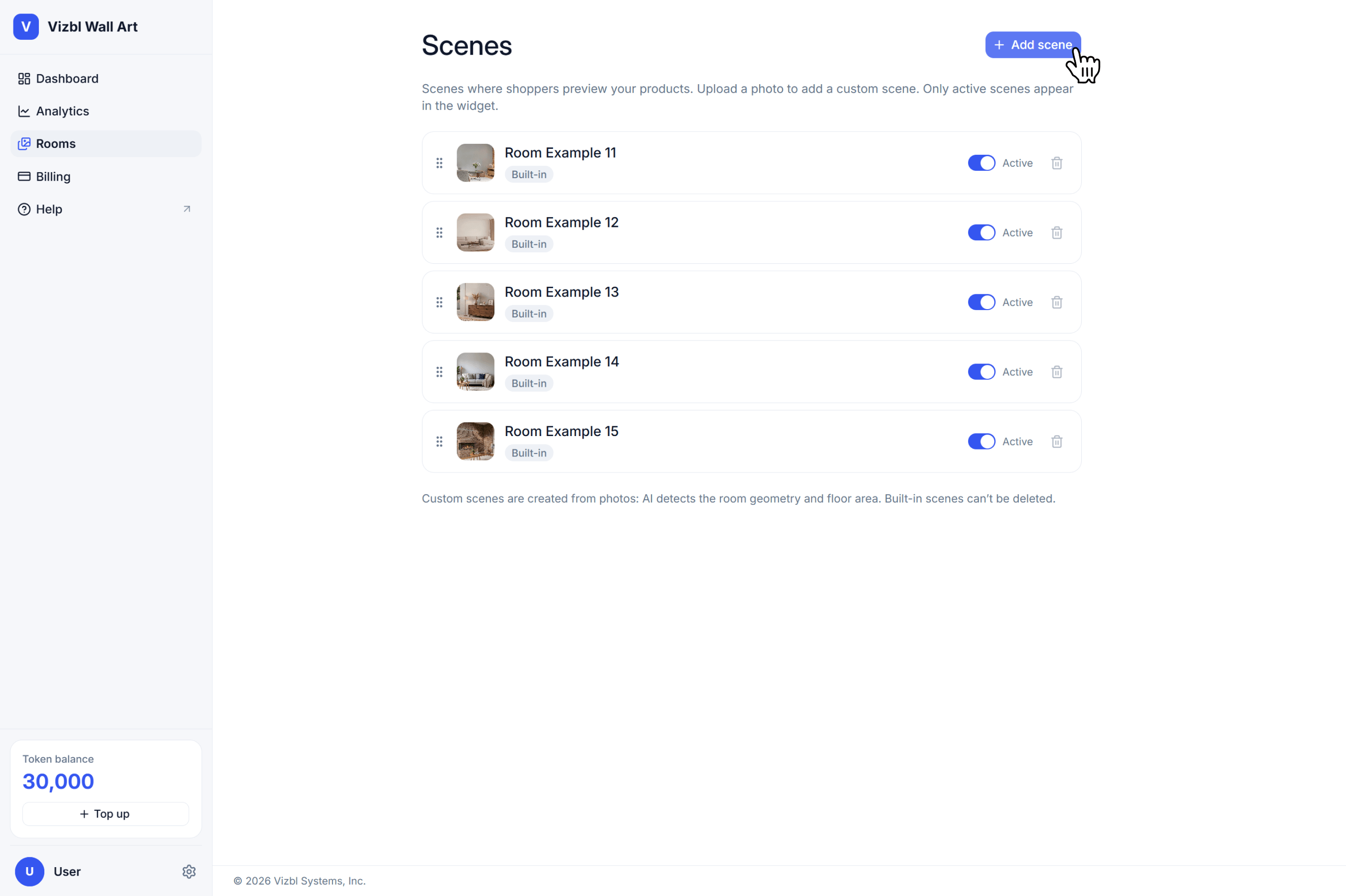
Open the workspace you need and click Scenes in the right panel. Each workspace keeps its own scene list — a scene you add in Wall Art won't show up in Flooring, so add them separately wherever you need them.
Uploading a scene
Managing scenes
Toggle any scene on or off directly in the list. Active scenes appear in the widget for your customers; inactive ones don't.
You can also preview any scene to see how products will be positioned and how perspective is handled before enabling it.
Deleting a scene is permanent — it can't be undone. If you need it back, upload the image again.
Join our Discord to ask questions about these instructions or get technical support. If something isn’t working, open a ticket and our team will investigate.


We use cookies and similar technologies to make this site work, measure traffic and improve your experience. You can opt out of analytics and marketing cookies at any time. View cookies.


